Keep scrolling into the next chapter, and a better tag filter
2 min read
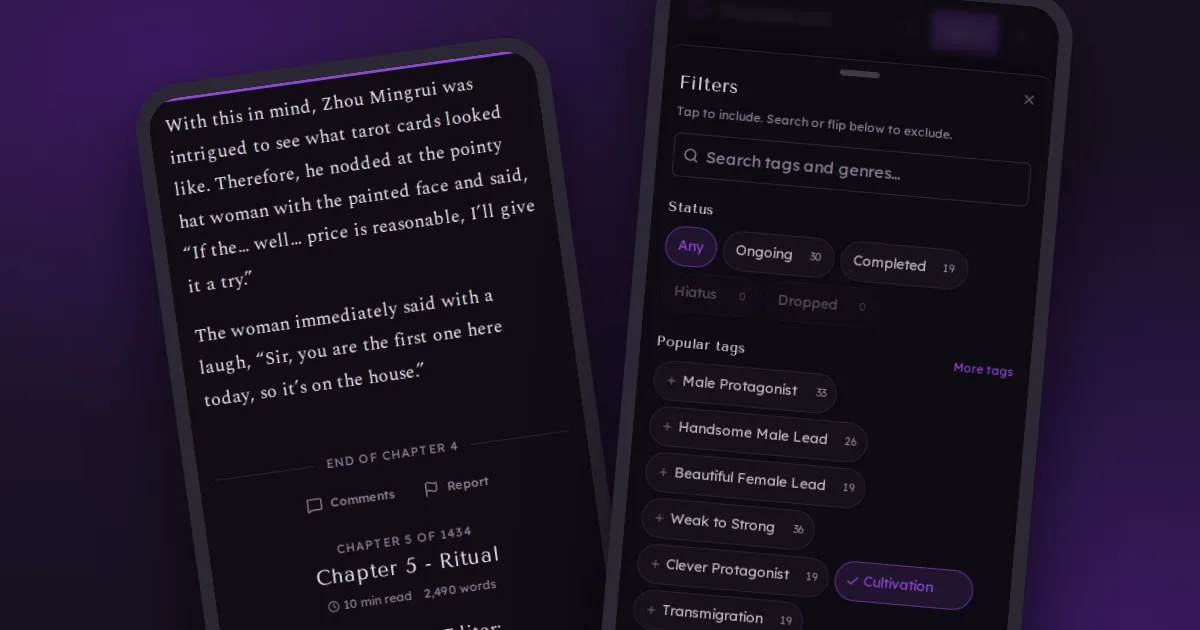
Two things readers asked for: reading on into the next chapter without tapping Next, and a better way to find novels by tag. Both are here.
Keep scrolling into the next chapter
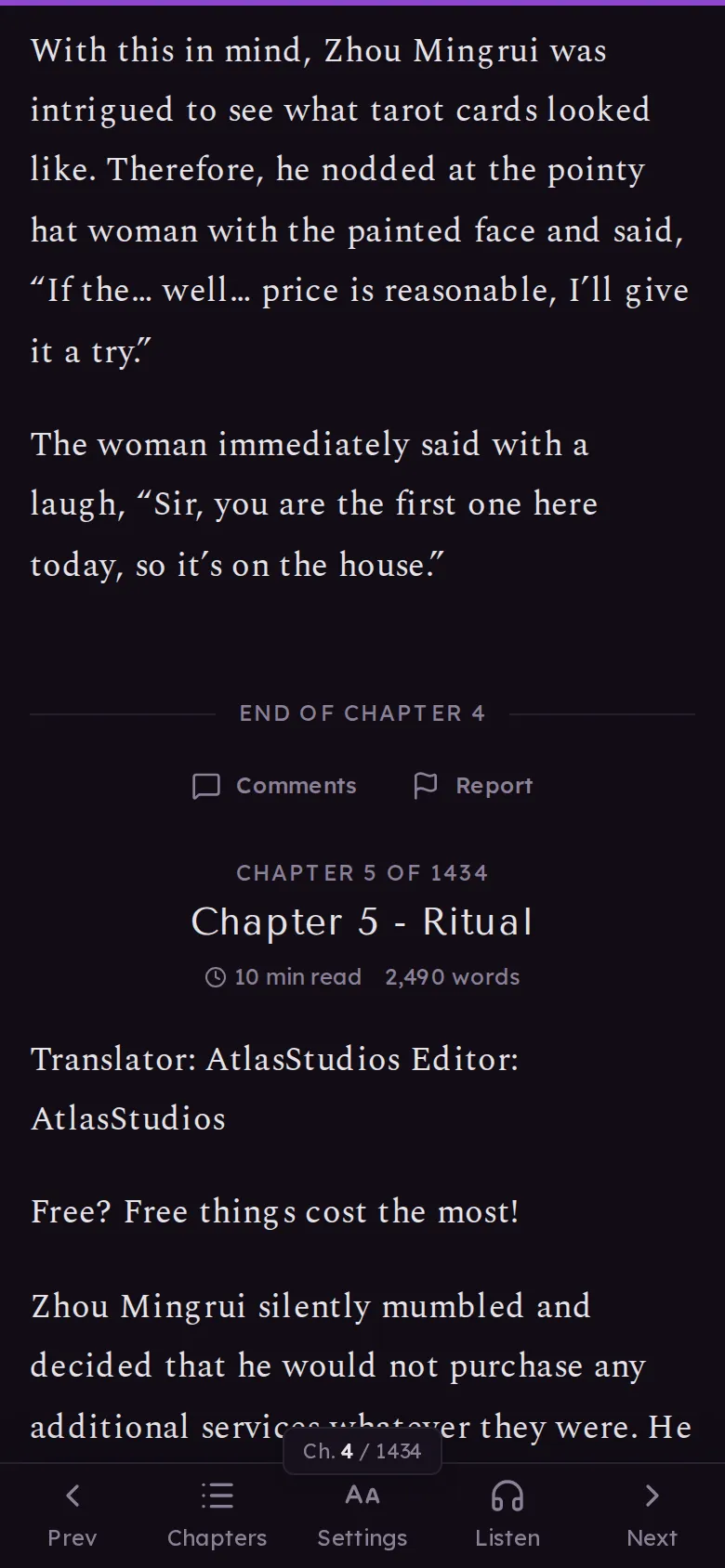
Turn on Continuous scrolling and the next chapter loads right below the one you're reading. When a chapter ends, keep scrolling.
The easy way to turn it on: when you reach the end of a chapter, a small card asks Keep scrolling into Chapter N? Tap Turn on. It's also in the reader's Settings › Layout, and you can turn it off there any time.

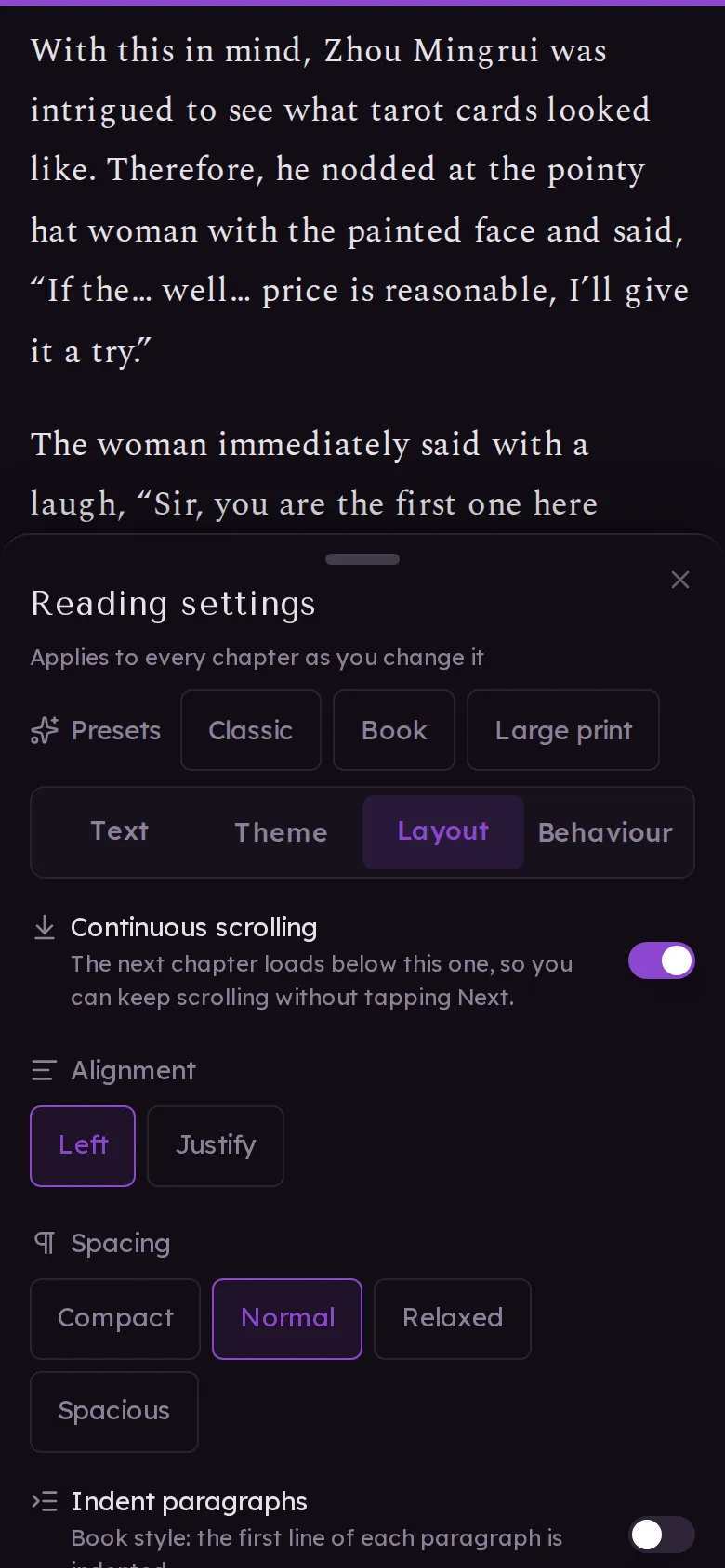
A few things to know:
- A thin line marks where each chapter ends, with that chapter's Comments and Report right there. Comments open in place, so you don't lose your spot.
- The address bar, the chapter number on the toolbar and the chapter list follow the chapter you're in. Reload or share the link and it opens that chapter.
- Your place is still saved down to the paragraph, so you pick up where you stopped, on any device.
- Next and Prev still work. If that chapter is already on the page, they take you straight to it.
- Listen reads the chapter you're on when you start it.
- Downloaded chapters keep coming when you're offline.
- On a computer, a small bar in the bottom left shows which chapter you're in, with Prev, Next, the chapter list and Settings.
It stays off unless you turn it on, so if you like stopping at the end of each chapter, nothing changes for you.

A better tag filter
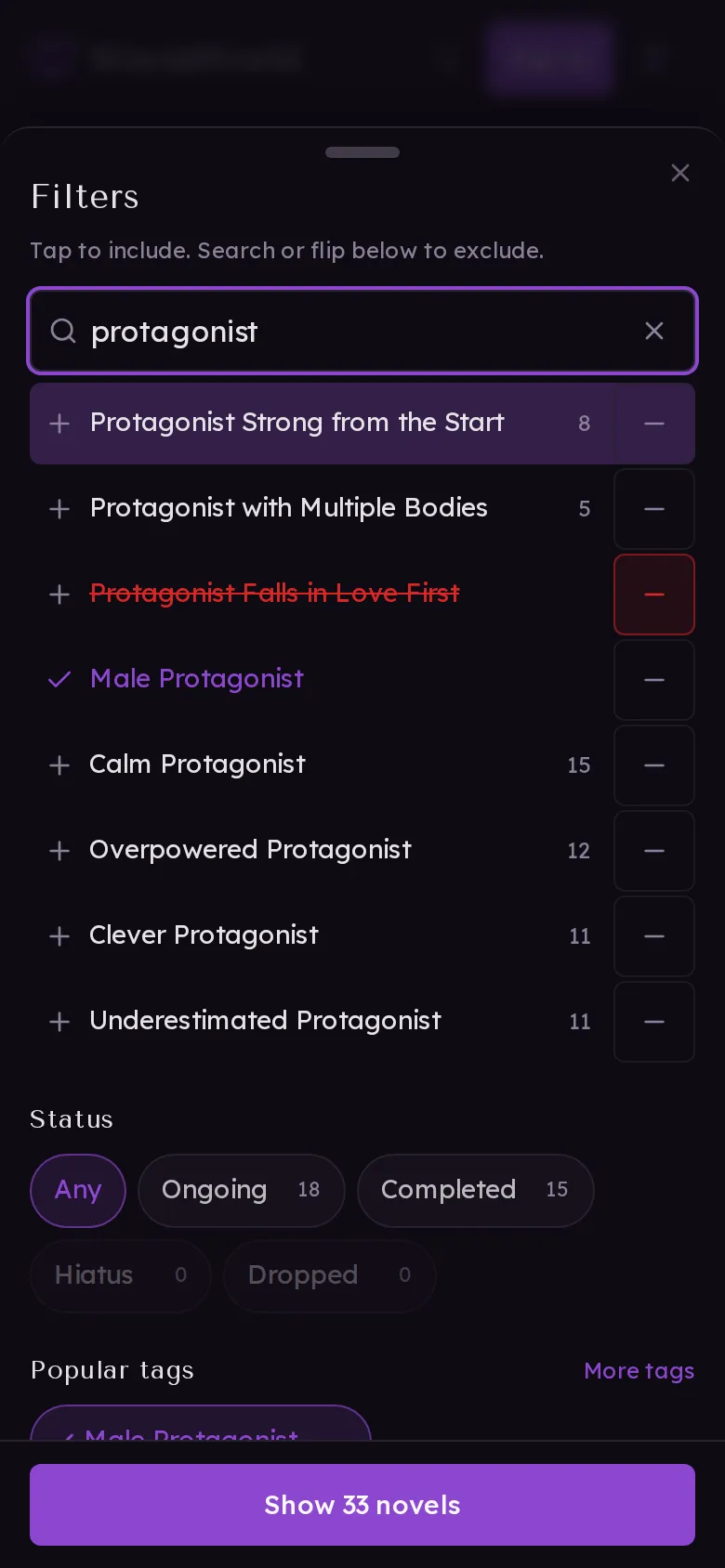
Browse has a new filter. On your phone, tap Filters. On a computer it's on the left.
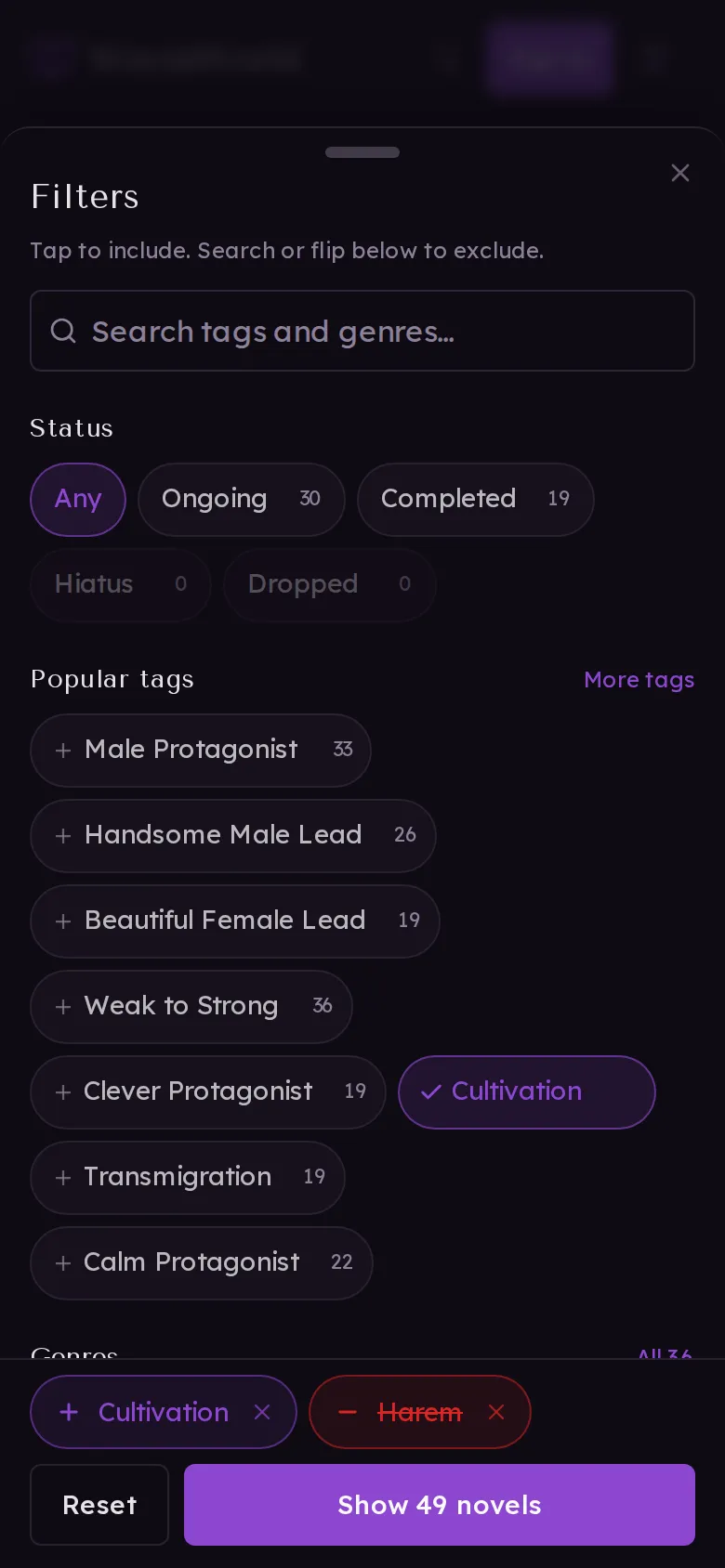
- Tap a tag or genre to include it. The number next to each one is how many novels you'd get with it added. The ones that would leave you with nothing are greyed out, so you never end up on an empty page.
- To leave something out, search for it and tap the minus. Everything you've picked sits at the bottom of the filters: tap the plus or minus in front of a choice to switch between including it and leaving it out, or the cross to remove it.
- The suggested tags change with your results. Pick Cultivation and you'll see the tags that most often go with it.
- Search every tag and genre by name. The words readers use work too, like isekai, OP MC, BL or LitRPG, and a small typo still finds the tag.
- Status is right at the top. More filters has a minimum rating, how recently a novel was updated, and the original language.
- Match all or any of the tags you include.
On your phone, nothing changes until you tap Show N novels. On a computer, the results update as you click.
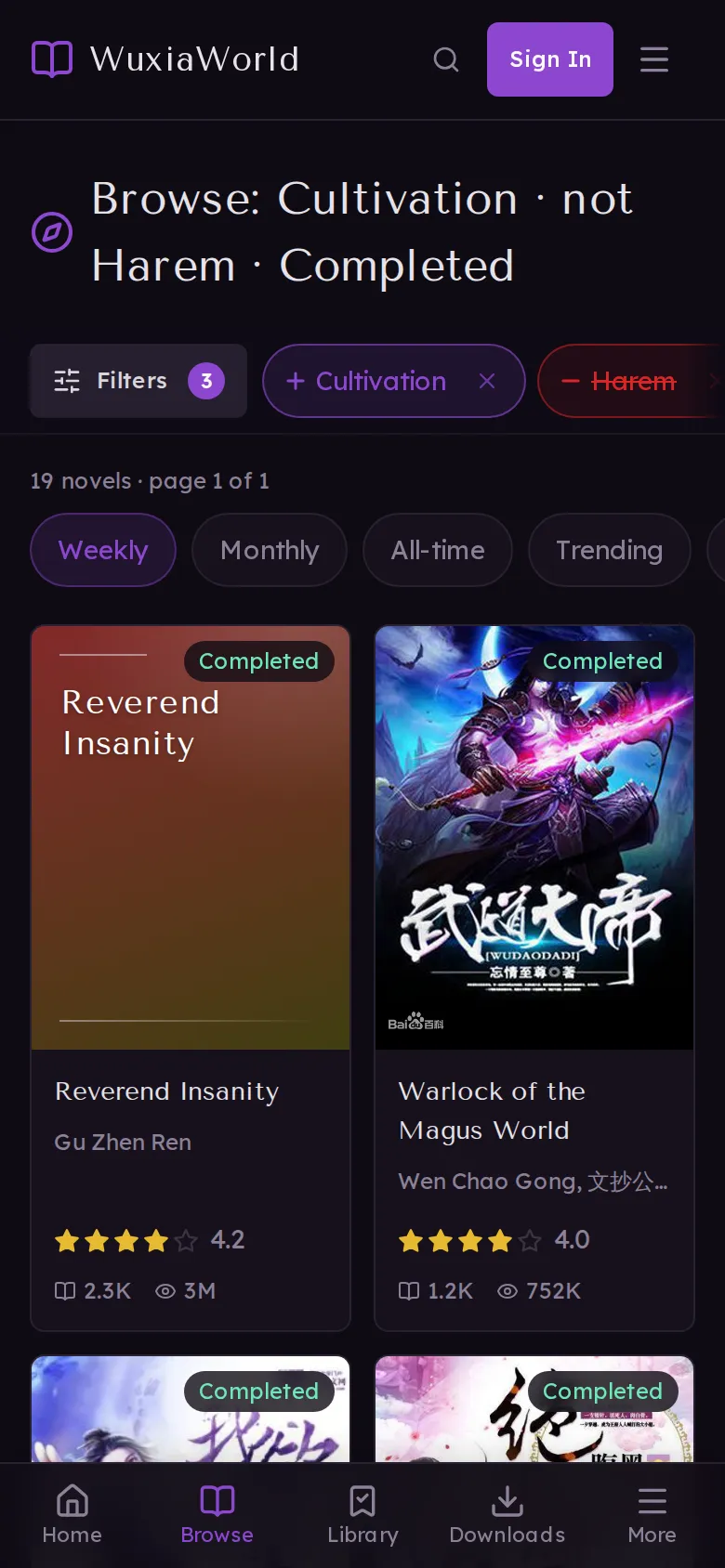
You can also start from any tag page: tap Combine with other tags. Every filter has its own link, so you can bookmark it or send it to a friend.
Thanks to the readers who asked for both of these. Tell me in the comments how continuous scrolling feels on your phone, and which tags you filter by.